Connect and run the Impact Awareness.
Runs read-only checks through your active Salesforce browser session. Free on-screen summary first. The full $149 XLSX workbook is optional and yours to keep.
Drag this button to your browser’s bookmarks bar. Do not click it here — dragging is what saves it.
This creates a browser bookmark only. Nothing is installed in Salesforce, and nothing is downloaded to your computer.
Bookmarks bar hidden? Windows: Ctrl+Shift+B · Mac: Cmd+Shift+B
How to Add the Bookmarklet
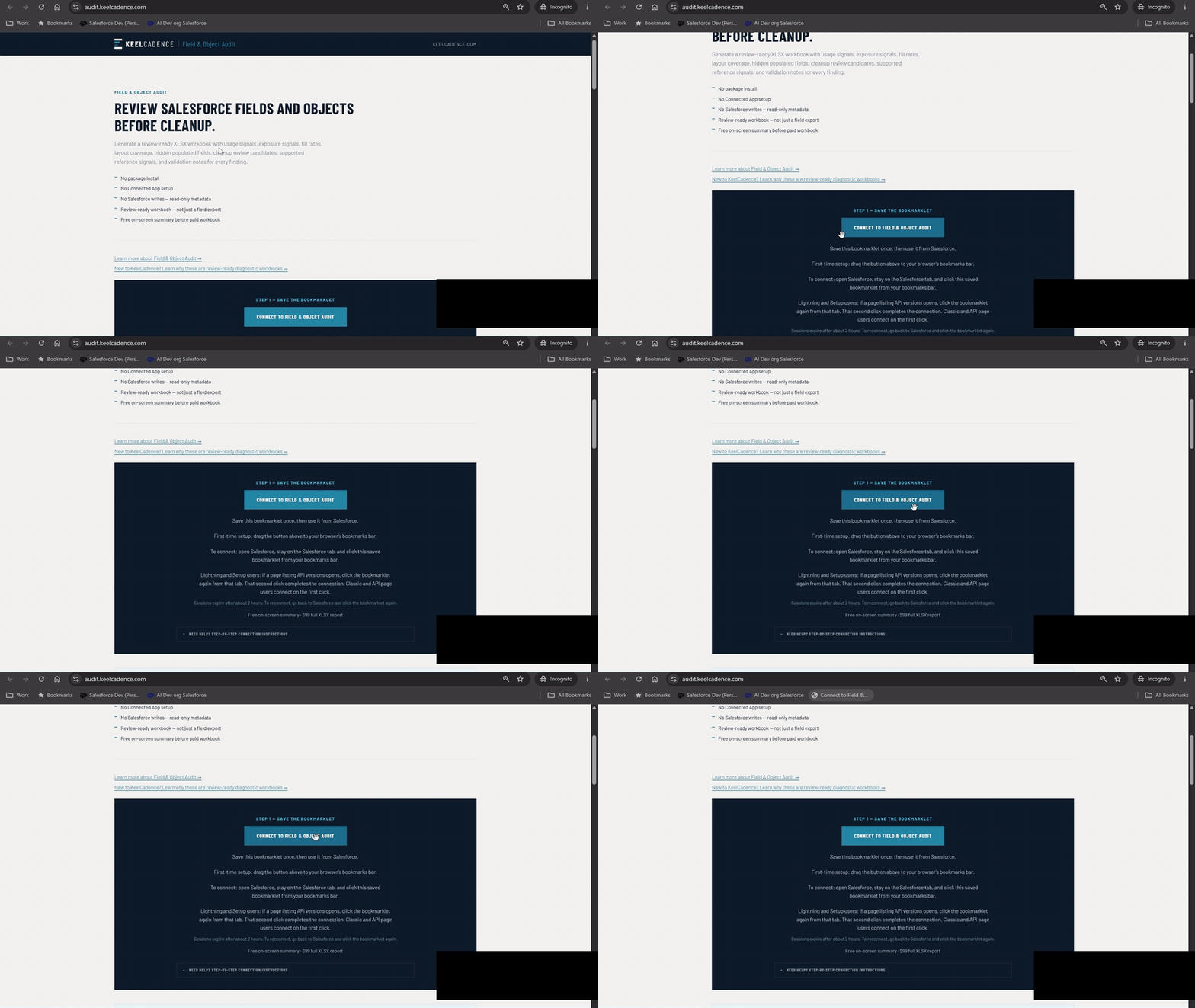
Then connect in 3 steps
- Open Salesforce in another tab.
- Click the saved bookmarklet from Salesforce.
- If Salesforce opens the XML/API page (Lightning and Setup users), stay on that Salesforce page. Then click the same saved KeelCadence bookmarklet in your browser’s bookmarks bar again. Do not click anything on the XML/API page itself. Classic / API users (yourorg.my.salesforce.com) connect on the first click.
Sessions expire after about 2 hours. To reconnect, go back to Salesforce and click the bookmarklet again.
On a phone or tablet? Bookmarklets need a desktop browser. Save this page for your desktop, or view the sample workbook now.
| Summary item | Value |
|---|---|
| Objects analyzed | 6 |
| Active flows on target objects | 43 |
| Validation rules in scope | 36 |
| Restricted picklists | 61 |
| Required fields (all objects) | 49 |
Free summary first. Pay once, keep the workbook.
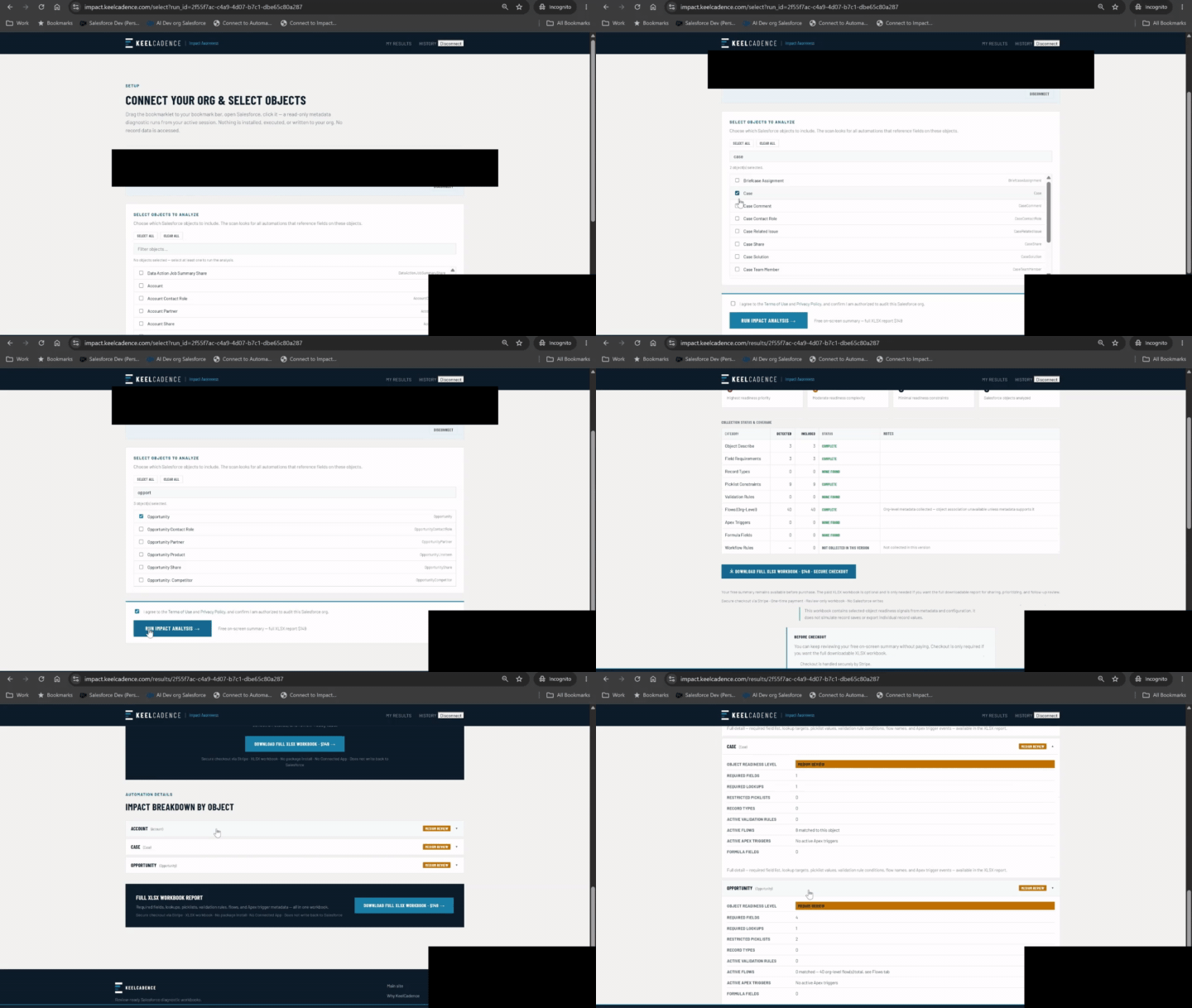
Need a full walkthrough?
Need the full walkthrough? Watch the tutorial showing how to add the bookmarklet, connect from Salesforce, run the diagnostic, and review results.
Review-ready sheets.
Fictitious, anonymized demo data. “Acme Corp” is a sample Salesforce org used for illustration. Your real report covers all objects and fields you select.
| Object | Field API Name | Label | Type | Required Classification | Action |
|---|---|---|---|---|---|
| Case | AccountId | Account Name | reference | Required lookup | Confirm parent Account record exists before insert |
| Case | ContactId | Contact Name | reference | Required lookup | Confirm parent Contact record exists before insert |
| Case | Subject | Subject | string | Required field | Populate before insert. Non-nillable. |
| Case | Status | Status | picklist (restricted) | Restricted picklist | Confirm value is in the active picklist before import |
| Case | Case_Age_Days__c | Case Age (Days) | formula (number) | Formula / read-only | Exclude from import. Value is calculated. |
Preview the full workbook before you run your audit. This sample was generated from fictitious demo data, so you can review all tabs, readiness findings, and recommended actions before purchasing.
Free on-screen summary is always included. Paid XLSX report: $149 one-time.
What this diagnostic can access, and what it does not do.
What we analyze
- Active org-level AutoLaunchedFlows
- Apex triggers on your selected objects
- Validation rules on your selected objects
- Formula fields across selected objects
- Required field and required lookup constraints
- Record types and restricted picklists
Security and privacy
- Analyzes configuration metadata only. Does not query business record data.
- Does not export customer records, files, attachments, emails, Chatter content, or transactional data
- Session credentials held in memory, never written to disk
- No Connected App, no managed package, no AppExchange listing
- No Apex execution, no Flow execution, no org writes
- Stripe processes payments. We never see your card details.
- GA4 analytics do not receive org IDs, run IDs, or field names
The report reviews selected-object readiness signals from metadata and configuration. It does not simulate record saves or export individual record values. Full security details →
Ready when your Salesforce tab is.
Save the Connect button, open your org, and click the bookmark from the Salesforce tab. The free summary runs in about a minute.
Back to the steps Learn more about this workbook at keelcadence.com